Overview of the HUZZAH32 board from Adafruit. This exercise is based on a series of other tutorials available online.
This exercise assumes you are familiar with programming with Python and Anaconda.
Download and install the driver necessary to read and write from HUZZAH32 here. In this exercise, I am using a Windows machine. However, the steps should work for the other OSes.
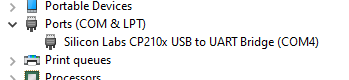
Connect the HUZZAH32 board to your computer. Go to Device Manager. You should be able to see under Ports (COM & LPT) - Silicon Labs CP210x USB to UART Brigdge (COMx). Remember the COM number ‘COM4’ in my case.
Download the Micropython firmware.
Install miniconda. For instructions on how to use conda refer to this.
Create an environment call micropython.
$ conda create --name micropython python=3.9Once created activate the environment and we will be working in this environment.
$ conda activate micropython
Install the esptool.py tool with the following command in the micropython environment.
$ pip install esptoolInstall the ampy library with the following command.
$ pip install adafruit-ampyType in this command to erase and flash the micropython onto the HUZZAH32 board. Remember the COM number of your HUZZAH32 board. Specify the directory of where you downloaded your Micropython firmware.
$ esptool --chip esp32 --port COMx erase_flash
$ esptool --chip esp32 --port COMx --baud 460800 write_flash -z 0x1000 <micropython_firmware>.bin
With Micropython install on your board. We can write some codes with the Thonny IDE. Download the Thonny IDE here.
In Thonny go to Tools -> Options -> Interpreter. In the ‘Which interpreter or device should Thonny use for running your code?’, choose Micropython (ESP32). In the ‘Port or WebREPL’, choose the COM your HUZZAH32 board is connected to.
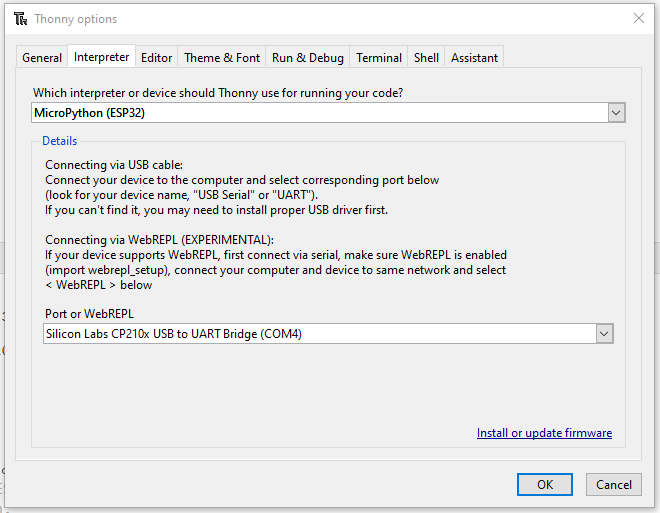
Once chosen, the shell will show it is connected to the Micropython on the HUZZAH32.

Connect to an existing WiFi network and enable webrepl interface. This will allow you to access the device through a local network.
Write a script and upload it onto the board to connect to the internet. Go to File -> New. Copy and paste the codes onto the script. Connect to an existing wifi network with the following script.
def connect():
    import network
    import time
    ssid = b'your ssid name'
    pw = b'your password'

    station = network.WLAN(network.STA_IF)
    if station.isconnected() == False:
        print('connecting to network...')
        station.active(True)
        # wifi_networks = station.scan()
        # status = station.status()
        station.connect(ssid, pw)
        print('still connecting ...')
        while station.isconnected() == False:
            time.sleep(3)

        print('connected!')
        print(station.ifconfig())
    else:
        print('already connected')
        print(station.ifconfig())

connect()
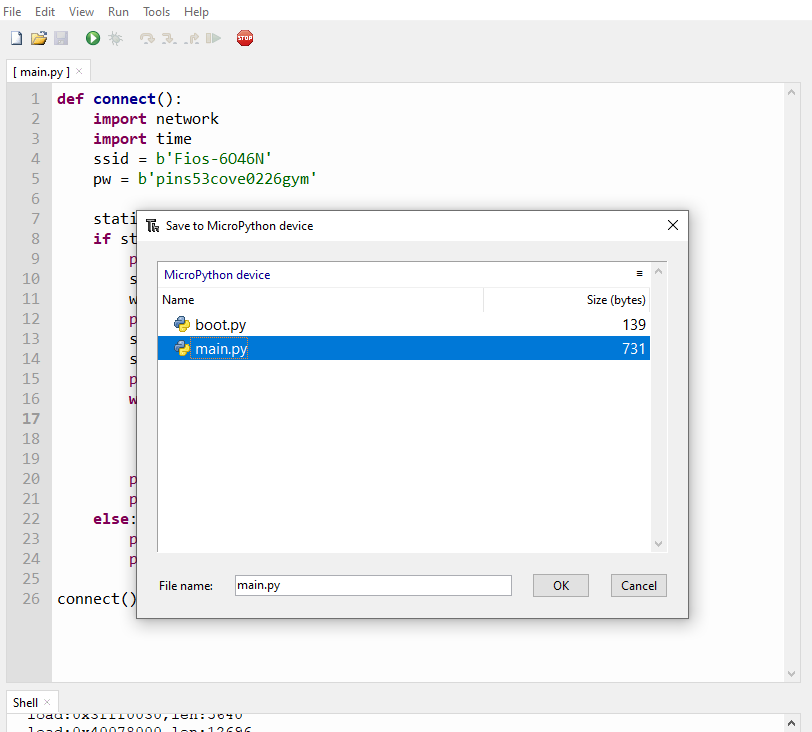
Go to File -> Save as ... -> Micropython device. Save the script as main.py. The boot.py and main.py are executed at each startup of the board.
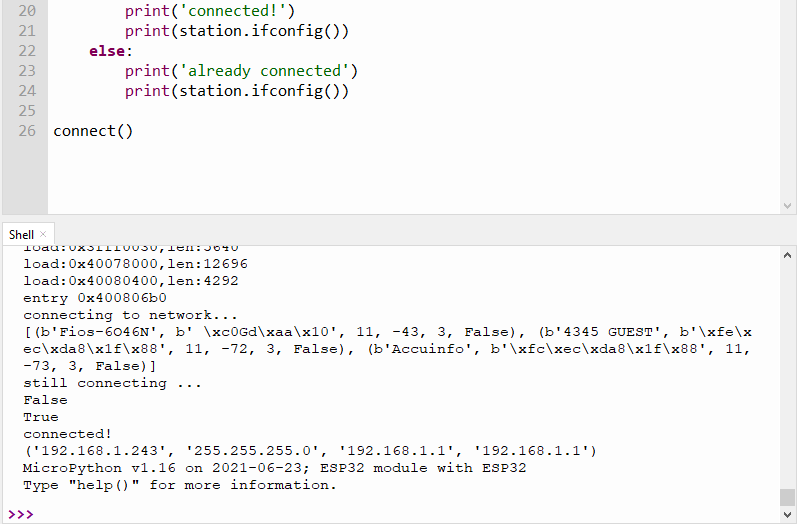
Press the reset button on HUZZAH32. If your credentials for your Wifi network is correct, you will see the successful connection message.
To enable webrepl, open the boot.py file.
At the shell of the Thonny IDE, type in:
import webrepl_setup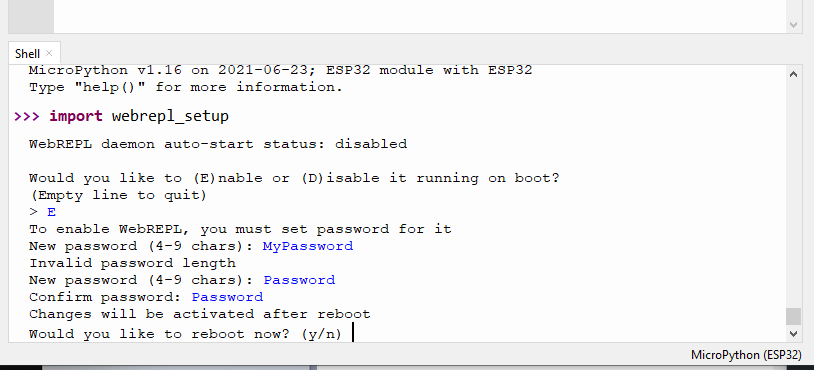
Check the boot.py file these two lines of code will be uncommented.
import WebREPL
webrepl.start()
First disconnect your HUZZAH from Thonny IDE. Now go to the micropython webrepl. In step 10, when you are connected a list of ip address is printed out. In my case the HUZZAH32 is connected on the 192.168.1.243 ip address. On the top left corner, key in:
ws://192.168.1.243:8266You will be prompted to enter the password you entered when setting up the webrepl. If successful you will be able to control the HUZZAH board as shown below. Remember to disconnect your board from the Thonny IDE. If not you will not be able to type in any commands in the webrepl.

Next we will write a blink.py script and upload it onto the board to blink the LED on HUZZAH32. Go to File -> New. Copy and paste the codes onto the script. Save the file as main.py as in step 9.
import machine
import time

#setup
led = machine.Pin(13, machine.Pin.OUT) # LED on the board

#loop
while True:
  if led.value() == 0:
    led.value(1)
  else:
    led.value(0)
  time.sleep(0.5)
Press the reset button on HUZZAH32. You will be able to see the LED blinks.